 LaunchRepo
Short answer
- One command adds the browser: cline mcp add chrome-devtools --yes -- npx … (full command below).
- Cline CLI 3.0.67 read MCP servers from ~/.cline/data/settings/cline_mcp_settings.json in every run. Two other paths named in the docs were ignored without an error.
- Cline then offered 30 Chrome DevTools tools, named chrome-devtools__…, next to its own file and terminal tools.
- Long pages need one extra setting: Cline cut every tool result above 8,000 characters in the middle, so the form on our long demo page never reached the model until we raised the limit.
- For a CAPTCHA or 2FA step, stop the run and resume the session in the interactive UI with cline --id. The form, the tab and the conversation were all still there in every run.
LaunchRepo works with any coding agent that can read and write files in your workspace and control a browser. Cline does both. This page documents a tested setup; it is not a certification or partnership.
Setup in three steps
Cline needs Node.js and a model provider of your choice. The browser comes from Chrome DevTools MCP, the same server the other LaunchRepo agent pages use.
- Install the CLI: npm i -g cline, then run cline auth and pick your provider.
- Add the browser server with the command below. It writes the entry to the settings file shown underneath.
- In the Chrome you launch from, open chrome://inspect/#remote-debugging and enable remote debugging (Chrome 144+). Run cline -i, ask it to open https://example.com and read the page title, and approve Chrome’s connection prompt. A correct title means the browser is connected.
Add Chrome DevTools MCP
cline mcp add chrome-devtools --yes -- npx -y chrome-devtools-mcp@1.10.1 --autoConnect --no-usage-statistics --no-performance-cruxResulting entry in ~/.cline/data/settings/cline_mcp_settings.json
{
  "mcpServers": {
    "chrome-devtools": {
      "transport": {
        "type": "stdio",
        "command": "npx",
        "args": [
          "-y",
          "chrome-devtools-mcp@1.10.1",
          "--autoConnect",
          "--no-usage-statistics",
          "--no-performance-crux"
        ]
      }
    }
  }
}
Hand-written alternative (same file)
{
  "mcpServers": {
    "chrome-devtools": {
      "command": "npx",
      "args": [
        "-y",
        "chrome-devtools-mcp@1.10.1",
        "--autoConnect",
        "--no-usage-statistics",
        "--no-performance-crux"
      ]
    }
  }
}
The flat command/args form from the Cline docs loaded exactly like the entry the CLI writes. --autoConnect connects to the Chrome you already use (Chrome 144+); for a separate launch-only Chrome, use --browser-url=http://127.0.0.1:9222 instead, which is how our test connected to its temporary Chrome.
VS Code or JetBrains extension
In the extension, open the MCP Servers icon in the Cline panel, choose Configure, then Configure MCP Servers, and add the same chrome-devtools entry under mcpServers. We did not run the extension in this test; these steps follow the Cline docs.
What we tested
Cline CLI 3.0.67 with Chrome DevTools MCP 1.10.1, Google Chrome 154.0.8037.92, macOS, Node 22, on October 1, 2026. Everything ran in a temporary home directory and a temporary Chrome profile, set up with cline auth and cline mcp add exactly as above.
No AI model was involved. A small local stand-in answered Cline’s model requests with fixed tool calls, reading element IDs only from what Cline actually sent it. That makes every run identical and free, and it tests what Cline itself controls: which config loads, which tools it offers, what the model gets to see, approvals, sessions and resume. It does not test how well a model plans.
Config variants: 3 runs each. Handoff run on the demo form of our CAPTCHA guide: 5 runs, with the tool-result limit raised as described below.
Which config file Cline loaded
Same server entry, different files and shapes. “Loaded” means the Chrome DevTools tools appeared in Cline’s request to the model.
| Variant | File | Result |
|---|---|---|
| Entry written by cline mcp add (nested transport) | ~/.cline/data/settings/cline_mcp_settings.json | Loaded, 30 tools (3/3) |
| Hand-written flat command/args | ~/.cline/data/settings/cline_mcp_settings.json | Loaded, 30 tools (3/3) |
| Same file under a custom --config directory | <dir>/data/settings/cline_mcp_settings.json | Loaded, 30 tools (3/3) |
| CLI path named on the Cline MCP docs page | ~/.cline/mcp.json | Not loaded, no error (0/3) |
| Project file named in the CLI reference and tools page | .cline/mcp.json | Not loaded, no error (0/3) |
| VS Code-style "servers" key instead of "mcpServers" | ~/.cline/data/settings/cline_mcp_settings.json | Not loaded, no error (0/3) |
| Entry with "disabled": true | ~/.cline/data/settings/cline_mcp_settings.json | Not loaded, no error (0/3) |
The handoff run
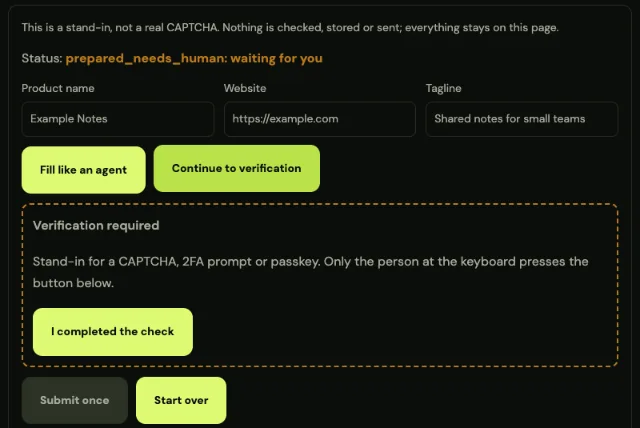
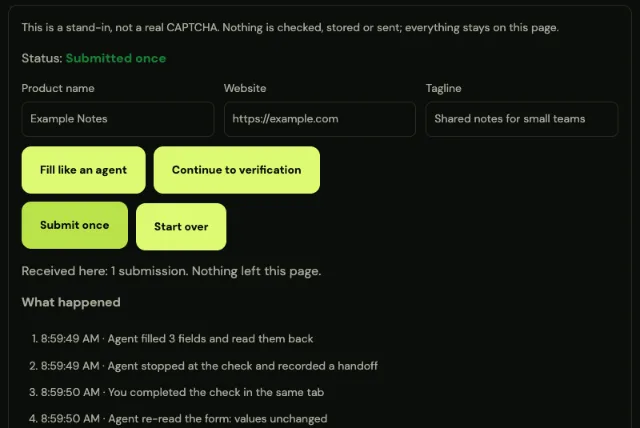
Cline opened the demo form, filled it, stopped at the stand-in check and ended the run. A script played the person and completed the check in the same tab. Then we reopened the session with cline --id in the interactive UI and asked Cline to finish. CAPTCHA and 2FA in agent workflows: the controlled handoff →
| Check | Runs passed |
|---|---|
| Chrome DevTools tools offered to the model | 5/5 |
| Opens the demo form in the connected Chrome | 5/5 |
| Form fields visible to the model at the default 8,000-character limit | 0/5 |
| Form fields visible with the limit raised | 5/5 |
| Fills three fields and reads them back | 5/5 |
| Stops at the check, status prepared_needs_human | 5/5 |
| Tab and filled fields survive the end of the run | 5/5 |
| Person completes the check in the same tab | 5/5 |
| Session reopened with --id still has the earlier steps | 5/5 |
| Resumed run finds and selects the same tab | 5/5 |
| Fields unchanged after the pause | 5/5 |
| Submits exactly once | 5/5 |
| Unattended run: the agent’s own question answered automatically | 5/5 |
| Interactive UI: the same question waits for the person | 5/5 |
| Unattended with --auto-approve false: tool calls refused | 5/5 |
| cline --id refused outside the interactive UI | 5/5 |
Screenshots Cline took during the run
Docs vs runtime: what we ran into
None of these fails loudly, which is why they cost time. Each one showed up in every run.
- Three documented config paths, one loads
- The MCP page names ~/.cline/mcp.json for the CLI; the CLI reference and the tools page name a project .cline/mcp.json. In CLI 3.0.67 neither loaded; ~/.cline/data/settings/cline_mcp_settings.json did, as the config page says.
- Wrong file or key means silence
- With the entry in an ignored file, under the VS Code key "servers", or marked "disabled": true, Cline started normally, exited with code 0 and simply had no browser tools. Check for chrome-devtools__ tools before blaming Chrome.
- Long pages lose their middle
- Cline cut every tool result above 8,000 characters and kept only the start and the end (“...[truncated 37945 chars]...”). On our long demo page the form sat in the cut part, so the model could not see a single field. CLI 3.0.67 reads the undocumented variable CLINE_MESSAGE_BUILDER_MAX_TOOL_RESULT_CHARS; with 120000 the whole page arrived. Larger results are re-sent on every turn, so raise it only as far as your pages need. The value only counts when Cline’s background hub starts: set it before the first cline call, or run cline doctor fix first. In our test a value set later was ignored.
- Resume needs the interactive UI
- cline --id <session-id> reopened the full conversation in the terminal UI. Outside it, the CLI refused: “interactive mode requires a TTY”, and with --json: “JSON output mode requires a prompt argument or piped stdin”.
- Questions behave differently per mode
- In the interactive UI the agent’s question waited for the person. In unattended runs the same question was answered with its first option within a millisecond, and with --auto-approve false every tool call was refused with an approval error instead of a question.
- Different tool names
- The tools page lists bash, search and fetch_web. CLI 3.0.67 offered run_commands, search_codebase, fetch_web_content, read_files, editor and ask_question, and MCP tools as chrome-devtools__<tool>. Use these names in rules and prompts.
| Topic | Wording | What we observed |
|---|---|---|
| What the extension does | Create files, run commands, browse the web, and use tools with human-in-the-loop approval. | Files plus browser plus approvals: the combination LaunchRepo relies on. |
| MCP page: CLI config | **CLI:** `~/.cline/mcp.json` | Not read by CLI 3.0.67 in our runs. |
| Tools page: MCP config | Cline can also call tools discovered from MCP servers configured in `.cline/mcp.json`. | Project file not read by CLI 3.0.67 in our runs. |
| Config page: settings location | Global provider settings, global settings, and MCP settings are stored under `~/.cline/data/settings/`. | The file that loaded in every run. |
| Tools page: tool names | Current SDK/ClineCore runtime uses the built-in tool names listed above (`read_files`, `apply_patch`, `bash`, etc.). | CLI 3.0.67 offered different built-in names (run_commands, search_codebase, fetch_web_content). |
| Recommended approvals | Leave edits, commands, browser, and MCP off until you have a specific reason | Sensible, but the CLI and the interactive UI both started with auto-approve on. Choose deliberately. |
| YOLO mode | YOLO mode disables all safety checks. | Never on the Chrome profile you launch with. |
| CLI requirement | Install Node.js 20+ (22 recommended). | Our test used Node 22. |
| Chrome DevTools MCP: Cline section | Follow https://docs.cline.bot/mcp/configuring-mcp-servers and use the config provided above. | The link now redirects to Cline’s MCP overview page. |
CAPTCHA and 2FA with Cline
When the form reaches a CAPTCHA, 2FA prompt or passkey, Cline should stop and describe the one step you take. In the interactive UI (cline -i) its question simply waits for you.
In unattended runs (cline "…" without a terminal, or --json) that question is answered automatically, so it is not a pause. Let the run end with the handoff note instead.
Complete the check in the same tab. Then reopen the session in the interactive UI: cline --id <session-id> (the ID is in cline history --json) and tell it: “The check is done. Re-read the form and submit once.”
In our runs the reopened session had every earlier step, found the same tab through Chrome DevTools MCP, saw the fields unchanged and submitted once.
Safe settings for launch work
- Use a Chrome profile for launches only, without banking or admin accounts.
- The interactive UI started with “Auto-approve all enabled” in our runs. Shift+Tab switched it to disabled; do that while you get to know a platform.
- Keep YOLO mode off whenever Cline is connected to a signed-in Chrome.
- Keep --no-usage-statistics and --no-performance-crux in the server arguments if you prefer Chrome DevTools MCP not to send usage data or page URLs.
- One browser worker at a time. LaunchRepo defaults to one for exactly this reason.
Start LaunchRepo in Cline
Open Cline in your LaunchRepo private workspace and paste the start prompt. The kit then leads onboarding, tests your Chrome connection on Example Domain and builds the run.
- The start prompt recommends Claude Code or Codex CLI for the best results. Cline works with the same kit because it has the two things the kit needs: file access in the workspace and a browser through MCP.
- The agent reads AGENTS.md, starts your local dashboard and records every submission in the tracker.
- CAPTCHA and 2FA steps come back to you as handoffs, exactly as described above.
LaunchRepo start prompt
Recommend Claude Code CLI or Codex CLI in a terminal instead of the desktop apps for best results. If session metadata confirms desktop hosting, explicitly advise me to switch to the CLI and resume this same private workspace. Do not infer the host from a CLI engine version alone.

Read AGENTS.md, then follow "Start the dashboard for the owner". Create my private
workspace if I do not have one yet, start the dashboard, and give me the link.
Then lead ONBOARDING.md one phase at a time. Reuse recorded permissions instead of
asking again unless their scope is missing or conflicting. Actually test my visible
existing Chrome profile and intended identity as BROWSER-SETUP.md requires; use the
OS fallback if needed. Use one platform/browser worker by default. Build the normal
run only from suitable free-ready routes, keep research separate, and preserve any
draft that needs one exact human CAPTCHA/2FA action. Never claim browser control
bypasses or reduces those challenges.Not covered by this test
- The VS Code and JetBrains extensions and Cline Desktop. The steps above for the extension follow the Cline docs.
- A real AI model. The stand-in removes model quality from the result; a model can still pick a wrong element.
- --autoConnect to an everyday Chrome profile. We used a temporary Chrome through --browser-url.
- Windows and Linux, remote MCP servers, Cline accounts and paid plans.
Sources
Every quote above is copied word for word from these pages, read on October 1, 2026. Tested behaviour comes from our own runs described on this page.
| Source | Page date | Checked |
|---|---|---|
| cline/cline: README | no date shown | |
| Cline Docs: MCP | no date shown | |
| Cline Docs: Config | no date shown | |
| Cline Docs: CLI Reference | no date shown | |
| Cline Docs: Tools | no date shown | |
| Cline Docs: Auto Approve & YOLO Mode | no date shown | |
| Cline Docs: Installing Cline | no date shown | |
| Cline Docs: OpenAI Compatible | no date shown | |
| Chrome DevTools MCP: MCP client configuration | no date shown |
FAQ
- Where does Cline store MCP server settings?
- In our test of Cline CLI 3.0.67, only ~/.cline/data/settings/cline_mcp_settings.json was read (or the same path under a directory passed with --config). ~/.cline/mcp.json and a project .cline/mcp.json were ignored without an error.
- How do I add Chrome DevTools MCP to Cline?
- Run cline mcp add chrome-devtools --yes -- npx -y chrome-devtools-mcp@1.10.1 --autoConnect --no-usage-statistics --no-performance-crux. It writes the entry for you. In the IDE extension, add the same entry under mcpServers via MCP Servers → Configure.
- Why does Cline not show my MCP tools?
- Most often the entry sits in a file Cline does not read, uses "servers" instead of "mcpServers", or has "disabled": true. Cline does not warn about any of these. A loaded Chrome DevTools server shows up as tools named chrome-devtools__….
- Why can Cline not find a form field that is clearly on the page?
- On long pages the snapshot can exceed Cline’s 8,000-character limit for tool results, and the middle of the page is cut before the model sees it. In our test, raising CLINE_MESSAGE_BUILDER_MAX_TOOL_RESULT_CHARS (undocumented, read by CLI 3.0.67) made the whole form visible. Set it before the first cline call, or run cline doctor fix first, because the running hub keeps the value it started with.
- Can Cline handle CAPTCHA or 2FA for me?
- No, and it should not try. It prepares the form and stops. You complete the check in the same tab, then reopen the session with cline --id in the interactive UI. In our runs the form and the session survived the pause every time.
- Is Cline officially supported by LaunchRepo?
- LaunchRepo supports coding agents that have file and browser access; Cline has both, and this page documents a tested setup. It is not a certification or partnership, and the start prompt still recommends Claude Code or Codex CLI for the best results.
Point Cline at your launch
LaunchRepo gives your agent the platform list, the runbook and a tracker it keeps up to date. Cline does the work in your browser; you keep the final say.
See pricing